
Create ordering deadlines for specific articles (B2B Pro)
Control when customers can place orders based on the preparation time required for each article.
Create an ordering rule
- Open Basic: Navigate to Basic in the lower left corner in MyFoodOffice.
- Select "Ordering rule": Click Operations, Ordering Rule and then Add new.
- Edit Ordering Deadline: Write the name for the ordering rule, choose usage Area Articles, add availability and order deadlines.
- Save Changes: Remember to save your changes to make the ordering rule available.
Add the ordering rule to a product
Go to Products: Navigate to the product list within MyFoodOffice.
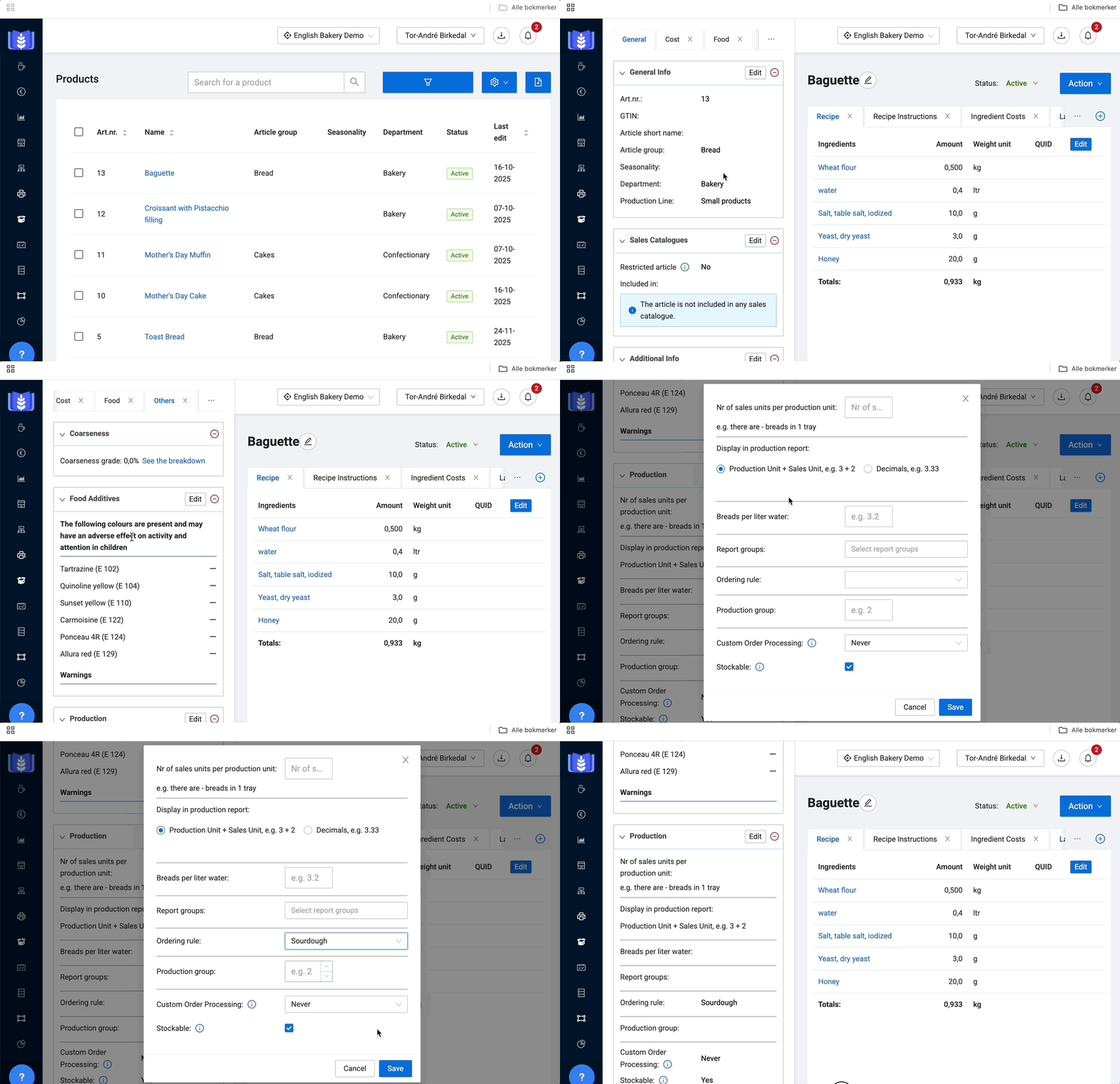
- Find the desired product(s): You can now either
- add the ordering rule from the widget Production inside of an article. See how in the video ->
- select the products you wish to update from the product list. Open the Action menu and choose Edit selected articles. Locate the Ordering rule field and select your preferred rule.
- Save Changes: Remember to save your changes to apply the customized ordering deadline.
Add the ordering rule to a merchandise
Go to Merchandises: Navigate to the list of merchandises within MyFoodOffice.
- Find the desired Merchandise(s): The process is the same as for products:
- add the ordering rule inside the widget Production on the chosen merchandise page.
- select the products you wish to update from the product list. Open the Action menu and choose Edit selected articles. Locate the Ordering rule field and select your preferred rule.
- Save Changes: Remember to save your changes to apply the customized ordering deadline.
| Note |
| Customer ordering rules take precedence over article ordering rules. |
Read more:
Last updated: 2/18/26, 7:42 AM