
How to set up a price campaign and how it works
Set up a price campaign
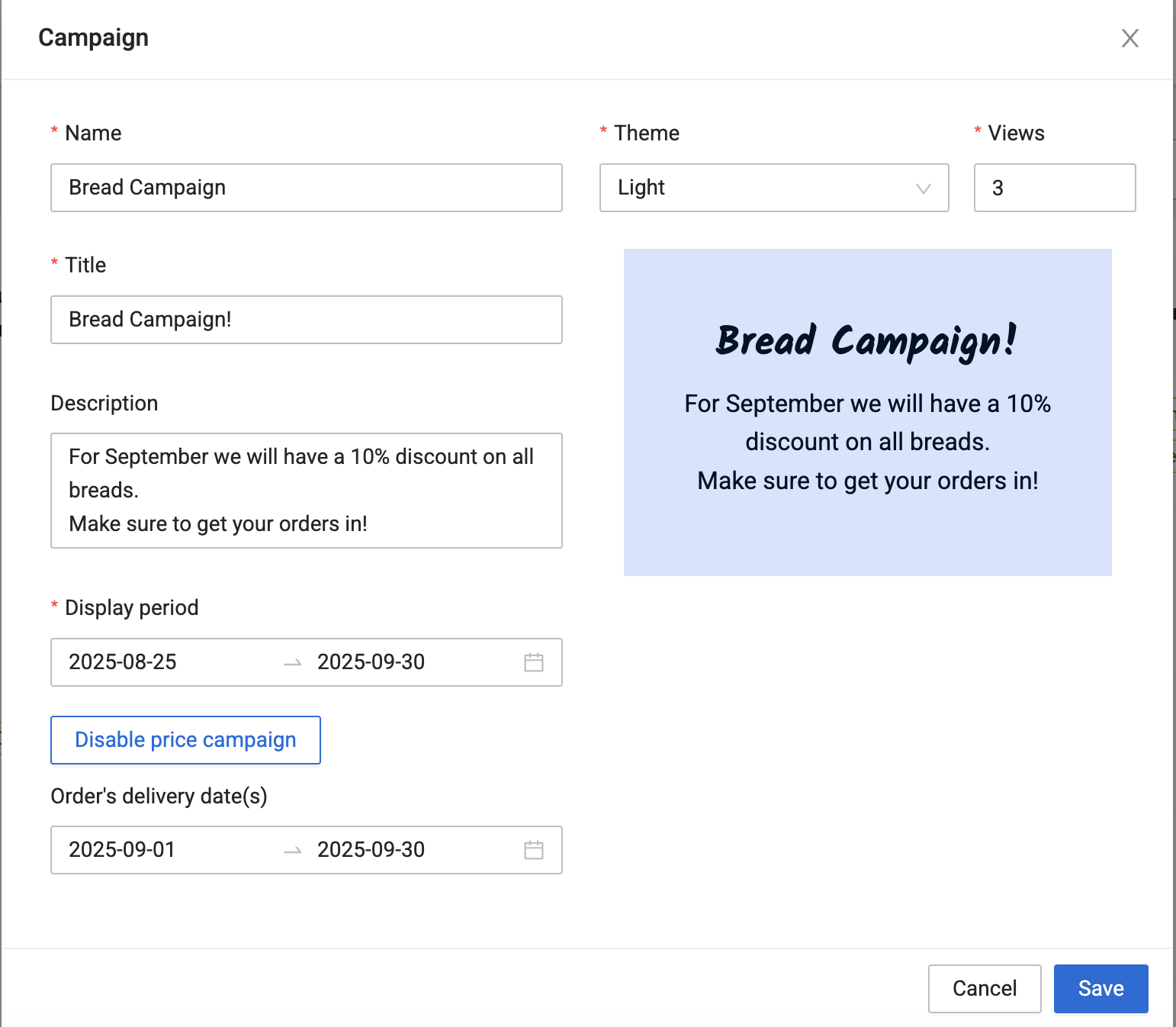
Create the campaign, and add the following:
- A title and a description
- A campaign image (e.g., a photo of your article or one of our existing themes)
- Views is the number of times you want your customer to see the promotion.
- A start and end date for when the campaign should run
- Enable price campaign with a start and end date
| Recommendation: |
| We recommend that price campaigns do not overlap with upcoming price changes. For example, your prices are due to change on the 1 July. Your price campaign period should either end on 30 June or begin on 1 July. |
Set discounted prices in your price campaign
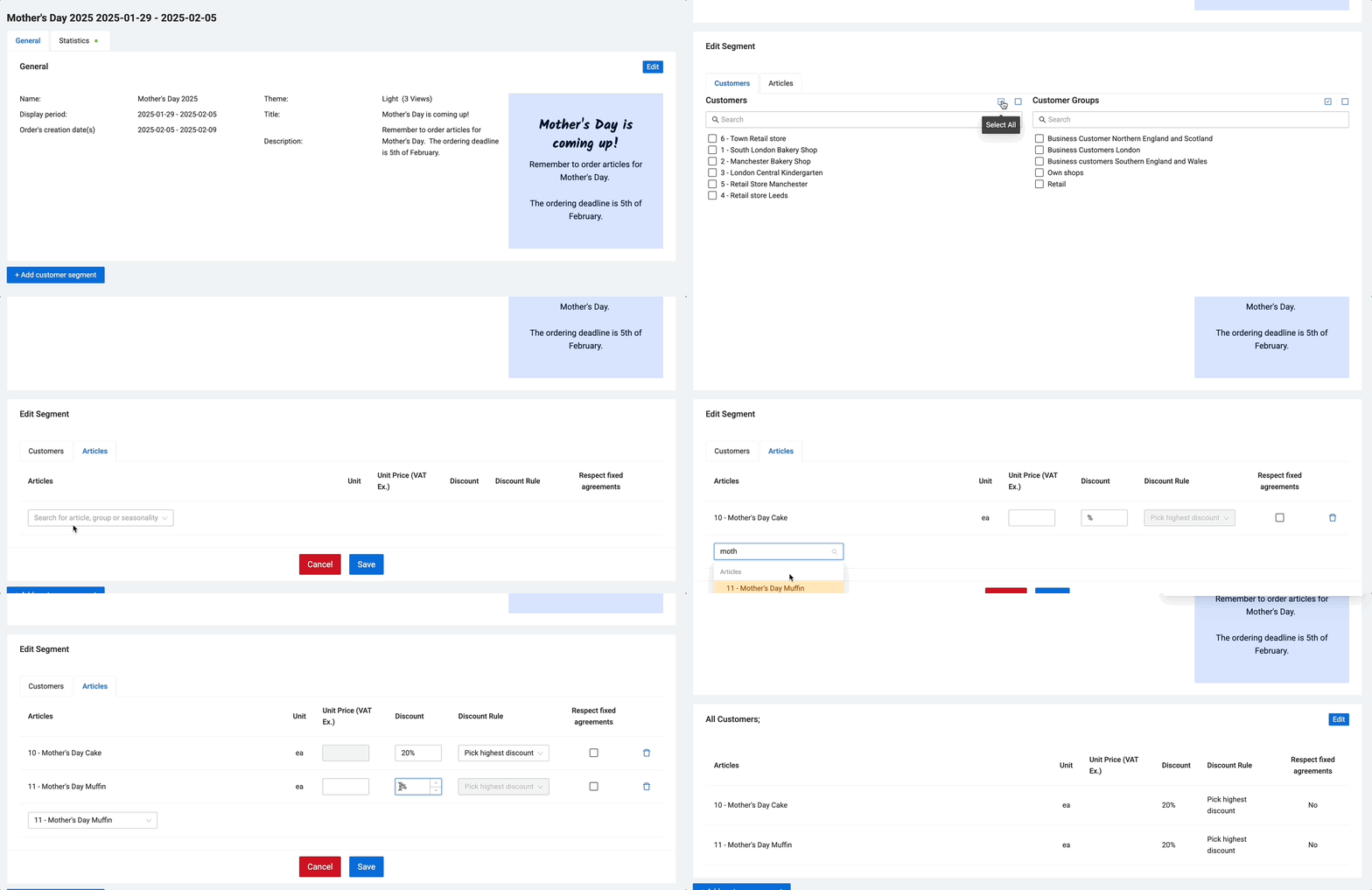
To set discounted prices you need to:
- click + Add customer segment
- Add the customers and customer groups that will have the price discount
- Go to the tab called Articles
- Choose the desired articles.
- You can add a set unit price or a discount for each article.
Please note the following allowed combinations
| Select articles by | Discount % | Set Price |
|---|---|---|
| Article level | V | V |
| Article Group | V | X |
| Seasonality | V | X |
| Note: |
| Our campaign feature works seamlessly with our sales catalogue feature. This simplifies the setting up of campaigns. For example, you can pick a bigger customer segment and include 3 articles in the campaign. Let's say one of these customers are only eligible to order two of the selected articles. Our sales catalogue feature takes priority over campaigns, making sure that customers can only order agreed articles. |
Percentage discounts
If you set campaign prices with percentage discounts, you can choose whether to:
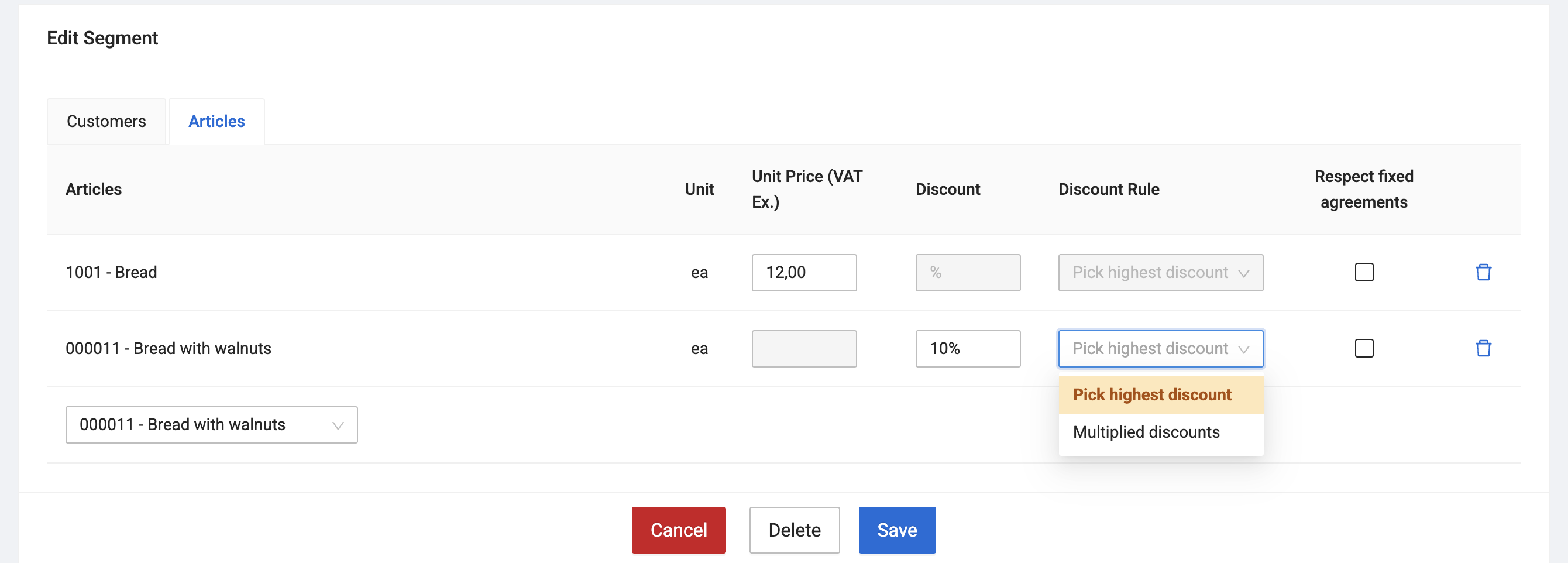
- Pick the highest discount: The customer has already a pre-agreed discount. This should stay, unless the campaign discount is higher.
- Multiplied discounts: This means that the customer will get additional discounts on top of the existing pre-agreed discount.
Scenario 1
- Food product with selling price € 3,00
- Customer has a general discount of 10%
- Customer normally pays net € 2,70
- A 20% campaign discount is applied
| Discount Rules | Logic | Result |
| Pick the highest discount | Customer gets 20% off | Customer pays € 2,40 |
| Multiplied discounts | Customer gets 20% off on top of the 10% | Customer pays 2,16 |
Explanation to scenario 1
With the "Pick the highest discount" rule, the customer gets a better discount through the 20% campaign discount compared with the general 10% discount. With the "multiplied discounts" rule, the 20% campaign discount is applied on what the customer normally pays (net € 2,70). This allows a campaign message that the customer gets 20% on existing prices.
Scenario 2
- Food product with selling price € 3,00
- Customer has a general discount of 30%
- Customer normally pays € 2,10
- A 10% campaign discount is applied
| Discount Rules | Logic | Result |
| Pick the highest discount | Customer gets 30% off | Customer pays € 2,10 |
| Multiplied discounts | Customer gets 10% off on top of the 30% | Customer pays € 1,89 |
Explanation to scenario 2
- Pick the highest discount: The customer's general 30% discount is better than the campaign discount. In this scenario, the food product will not be shown in the price campaign for this particular customer to avoid misleading marketing.
- Multiplied discounts: The 10% campaign discount is applied on what the customer normally pays (net € 2,10). This allows the campaign message that the customer segment gets 10% on existing prices.
Fixed price agreements
You can also choose to adhere to fixed price agreements, ensuring they aren't affected by the campaign. This means that you can easily apply a set price or discount on a broader customer segment level, while making sure that single customers with fixed price agreements do not have their pre-agreed prices altered during the campaign period.