
Get started with Food Declarations
Overview of our step-by-step guide
1. Create your product
2. Fill out your recipe
3. Finalize your food declaration
Step 1: Create Your Products
Check out our in-app guided tour here (opens in new tab).
Or navigate to Products page yourself and click "New Product".
| Want to learn more? |
Step 2: Fill Out Your Recipe
The tour you started in step 1 will take you further to editing the recipe. Alternatively, you can navigate to one of your existing products and fill out the recipe yourself.
Inside the product page, make sure all ingredients are added to the recipe with the correct amount.
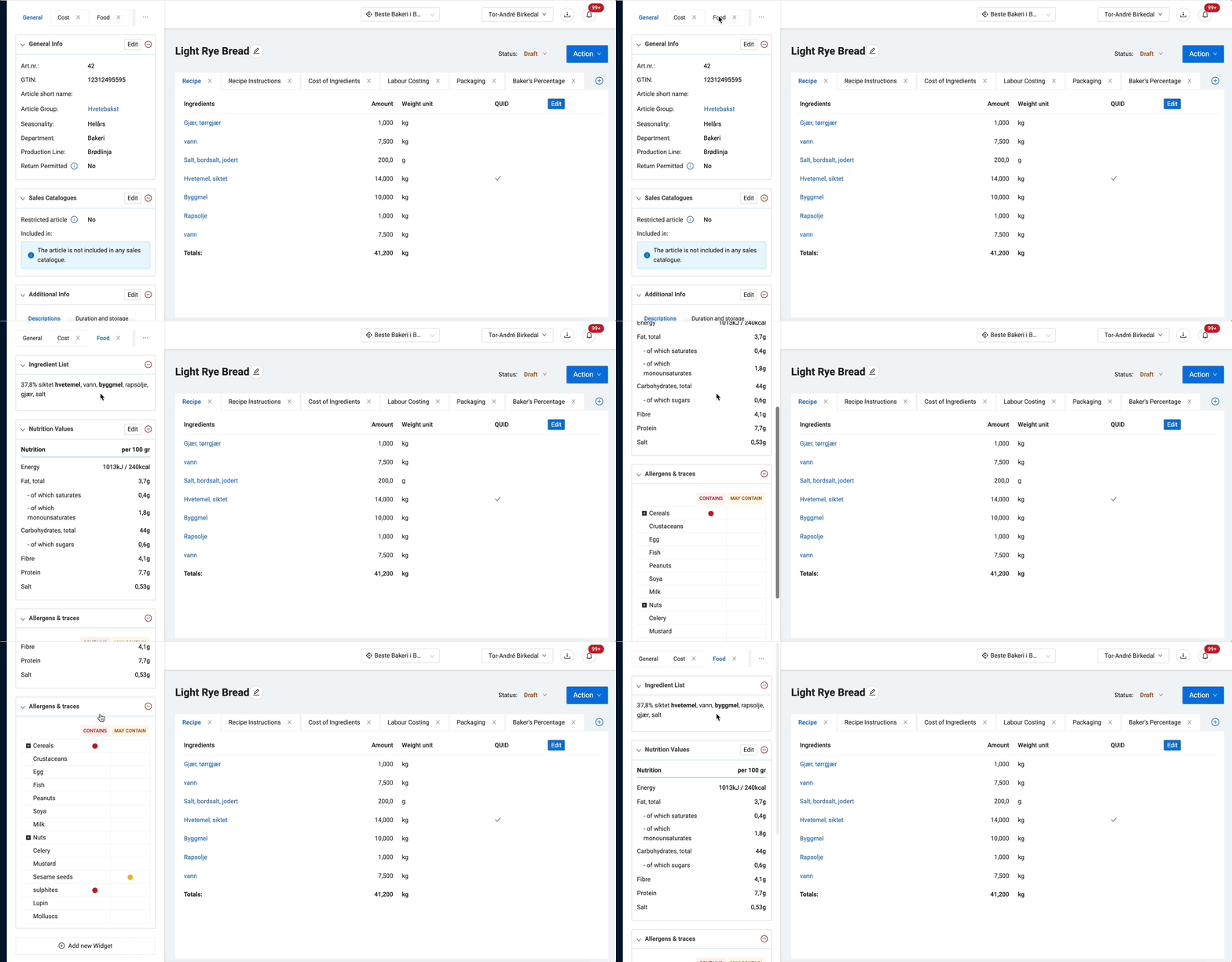
To see some of the results from your recipe, go to the banner called "Food" to see your ingredient list, nutritional values and allergens when you have saved the recipe.
| Want to learn more? |
Step 3: Finalizing Your Food Declaration
Your draft food declaration is ready as soon as your recipe is filled out.
We recommend you to finalize it by reviewing a couple of check points, like
- Quantitative Ingredient Declaration
- How water change during production affects key aspects
- Declare allergen traces
For your convenience, we've made a complete check list we suggest to go through to be sure you're in good hands.
Go to the check list by clicking here.
| User tip |
Check out our downloadable templates for food declarations and recipes. They can be printed out or shared by email. Follow the in-app guide here. |